QRPRESENCE

[Project Name] ID Card Scanner Attendance System
Basic Details
Team Name:dodo
Team Members
- Member 1: FATHIMA NAZRIN OA -ICET
- Member 2: VINEETTA WS -ICET
Hosted Project Link
Project Description
This project automatically marks student attendance using QR code ID cards. Students scan their ID cards via a webcam, and the system records them as present. It generates a digital attendance report, saving time and reducing manual errors.
The Problem statement
Manual attendance in classrooms is time-consuming, inefficient, and prone to errors, especially for large classes. Teachers often spend several minutes per student, and mistakes like marking the wrong student present or absent can occur. There is a need for a fast, accurate, and automated attendance system that reduces human effort and ensures reliable record-keepin
The Solution
[How are you solving it?]
—We solve this problem by using QR code ID cards and a scanner system. Students scan their ID cards via a webcam, the system automatically verifies their ID and marks them present. At the end, it generates a digital attendance report, saving time, reducing errors, and making attendance management efficient and accurate.
Technical Details
Technologies/Components Used
For Software:
- —Languages used: Python
Libraries used: opencv-python, pyzbar, qrcode, pillow
Tools used: VS Code, Python interpreter
For Hardware:
Main components: Webcam (built-in or USB), Computer
Specifications: Minimum 720p camera, Windows/Linux/Mac
Tools required: Python installed, VS Code
For Hardware:
Features
List the key features of your project: -List the key features of your project:
- Scan student ID cards with QR codes
Automatically mark attendance
Prevent duplicate attendance marking
Generate and save attendance reports (CSV)
Implementation
For Software:
Installation
`pip install opencv-python pyzbar qrcode pillow
#### Run
python generate_qr.py
python attendance_scanner.py
#### Components Required
Software Components:
Python – Programming language to build the system
Libraries:
opencv-python → To access webcam and capture images
pyzbar → To read QR codes
qrcode → To generate QR codes for student IDs
pillow → To handle QR code images
VS Code / Any IDE – To write and run Python code
### For Hardware:
#### Components Required
[List all components needed with specifications]
#### Circuit Setup
[Explain how to set up the circuit]
---
## Project Documentation
### For Software:
#### Screenshots (Add at least 3)
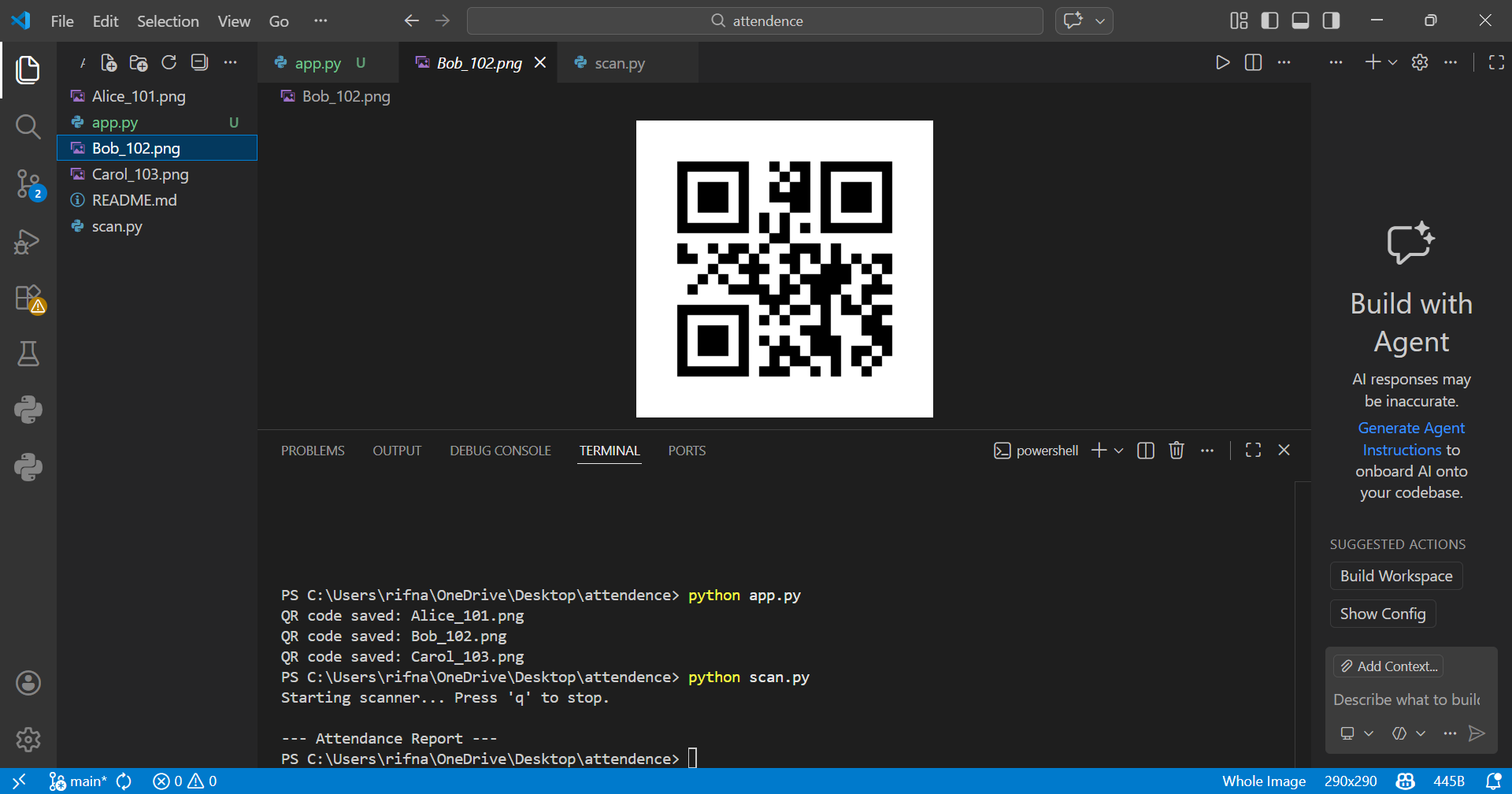
*Add caption explaining what this shows*
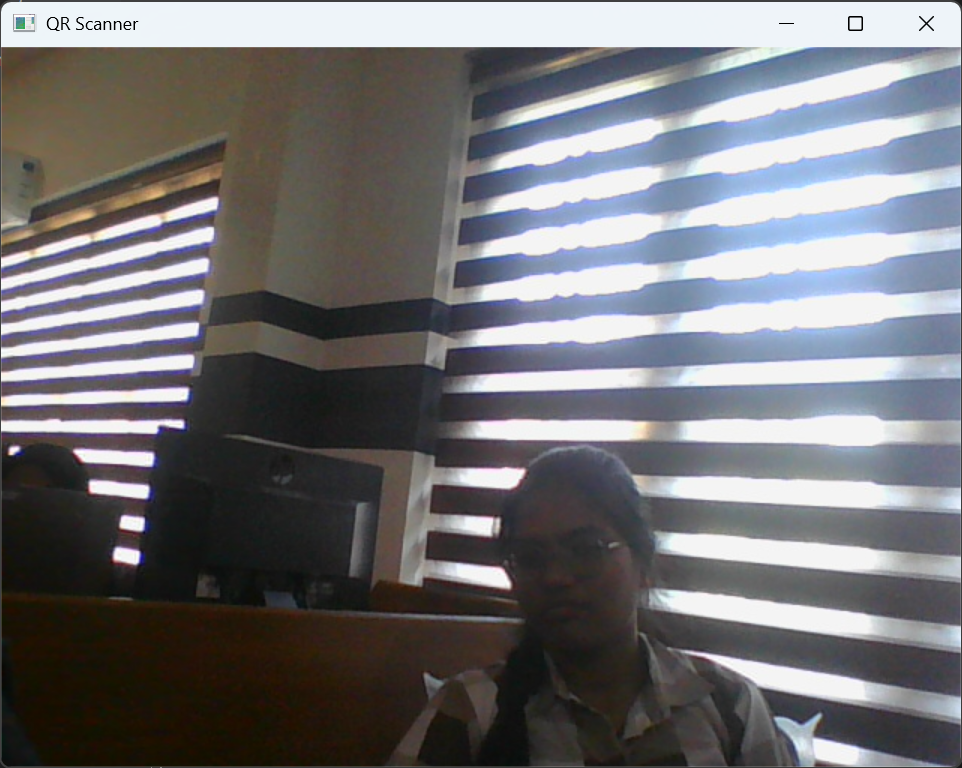
*Add caption explaining what this shows*

*Add caption explaining what this shows*
#### Diagrams
**System Architecture:**

*Explain your system architecture - components, data flow, tech stack interaction*
**Application Workflow:**

*Add caption explaining your workflow*
---
### For Hardware:
#### Schematic & Circuit

*Add caption explaining connections*

*Add caption explaining the schematic*
#### Build Photos


*List out all components shown*

*Explain the build steps*

*Explain the final build*
---
## Additional Documentation
### For Web Projects with Backend:
#### API Documentation
**Base URL:** `https://api.yourproject.com`
##### Endpoints
**GET /api/endpoint**
- **Description:** [What it does]
- **Parameters:**
- `param1` (string): [Description]
- `param2` (integer): [Description]
- **Response:**
```json
{
"status": "success",
"data": {}
}
POST /api/endpoint
- Description: [What it does]
- Request Body:
{ "field1": "value1", "field2": "value2" } - Response:
{
"status": "success",
"message": "Operation completed"
}
[Add more endpoints as needed…]
For Mobile Apps:
App Flow Diagram
 Explain the user flow through your application
Installation Guide
For Android (APK):
- Download the APK from [Release Link]
- Enable “Install from Unknown Sources” in your device settings:
- Go to Settings > Security
- Enable “Unknown Sources”
- Open the downloaded APK file
- Follow the installation prompts
- Open the app and enjoy!
For iOS (IPA) - TestFlight:
- Download TestFlight from the App Store
- Open this TestFlight link: [Your TestFlight Link]
- Click “Install” or “Accept”
- Wait for the app to install
- Open the app from your home screen
Building from Source:
# For Android
flutter build apk
# or
./gradlew assembleDebug

# For iOS
flutter build ios
# or
xcodebuild -workspace App.xcworkspace -scheme App -configuration Debug
For Hardware Projects:
Bill of Materials (BOM)
| Component | Quantity | Specifications | Price | Link/Source |
|---|---|---|---|---|
| Arduino Uno | 1 | ATmega328P, 16MHz | ₹450 | [Link] |
| LED | 5 | Red, 5mm, 20mA | ₹5 each | [Link] |
| Resistor | 5 | 220Ω, 1/4W | ₹1 each | [Link] |
| Breadboard | 1 | 830 points | ₹100 | [Link] |
| Jumper Wires | 20 | Male-to-Male | ₹50 | [Link] |
| [Add more…] |
Total Estimated Cost: ₹[Amount]
Assembly Instructions
Step 1: Prepare Components
- Gather all components listed in the BOM
- Check component specifications
- Prepare your workspace
 Caption: All components laid out
Step 2: Build the Power Supply
- Connect the power rails on the breadboard
- Connect Arduino 5V to breadboard positive rail
- Connect Arduino GND to breadboard negative rail
 Caption: Power connections completed
Step 3: Add Components
- Place LEDs on breadboard
- Connect resistors in series with LEDs
- Connect LED cathodes to GND
- Connect LED anodes to Arduino digital pins (2-6)
 Caption: LED circuit assembled
Step 4: [Continue for all steps…]
Final Assembly:
 Caption: Completed project ready for testing
For Scripts/CLI Tools:
Command Reference
Basic Usage:
python script.py [options] [arguments]
Available Commands:
command1 [args]- Description of what command1 doescommand2 [args]- Description of what command2 doescommand3 [args]- Description of what command3 does
Options:
-h, --help- Show help message and exit-v, --verbose- Enable verbose output-o, --output FILE- Specify output file path-c, --config FILE- Specify configuration file--version- Show version information
Examples:
# Example 1: Basic usage
python script.py input.txt

# Example 2: With verbose output
python script.py -v input.txt

# Example 3: Specify output file
python script.py -o output.txt input.txt

# Example 4: Using configuration
python script.py -c config.json --verbose input.txt
Demo Output
Example 1: Basic Processing
Input:
This is a sample input file
with multiple lines of text
for demonstration purposes
Command:
python script.py sample.txt
Output:
Processing: sample.txt
Lines processed: 3
Characters counted: 86
Status: Success
Output saved to: output.txt
Example 2: Advanced Usage
Input:
{
  "name": "test",
  "value": 123
}
Command:
python script.py -v --format json data.json
Output:
[VERBOSE] Loading configuration...
[VERBOSE] Parsing JSON input...
[VERBOSE] Processing data...
{
  "status": "success",
  "processed": true,
  "result": {
    "name": "test",
    "value": 123,
    "timestamp": "2024-02-07T10:30:00"
  }
}
[VERBOSE] Operation completed in 0.23s
Project Demo
Video
[Add your demo video link here - YouTube, Google Drive, etc.]
Explain what the video demonstrates - key features, user flow, technical highlights
Additional Demos
[Add any extra demo materials/links - Live site, APK download, online demo, etc.]
AI Tools Used (Optional - For Transparency Bonus)
If you used AI tools during development, document them here for transparency:
Tool Used: [e.g., GitHub Copilot, v0.dev, Cursor, ChatGPT, Claude]
Purpose: [What you used it for]
- Example: “Generated boilerplate React components”
- Example: “Debugging assistance for async functions”
- Example: “Code review and optimization suggestions”
Key Prompts Used:
- “Create a REST API endpoint for user authentication”
- “Debug this async function that’s causing race conditions”
- “Optimize this database query for better performance”
Percentage of AI-generated code: [Approximately X%]
Human Contributions:
- Architecture design and planning
- Custom business logic implementation
- Integration and testing
- UI/UX design decisions
Note: Proper documentation of AI usage demonstrates transparency and earns bonus points in evaluation!
Team Contributions
License
This project is licensed under the [LICENSE_NAME] License - see the LICENSE file for details.
Common License Options:
- MIT License (Permissive, widely used)
- Apache 2.0 (Permissive with patent grant)
- GPL v3 (Copyleft, requires derivative works to be open source)
Made with ❤️ at TinkerHub